How do I cancel a reservation?
Show Menu
- Quick Start
- Overview
- Lockers
- Reservations
- Orders
- Customers
- Products
- Overwrite codes
- Virtual Vending Machine
- Settings
- User Settings
- Log in to https://app.viresmo.com. Select your organisation and your store.
A reservation can be canceled at "Overview", "Reservations" or at "Lockers". For more information about the other pages, see:
- Overview - How do I cancel a reservation?
- Lockers - How do I cancel a reservation?
- In the menu on the left, go to "Reservations".
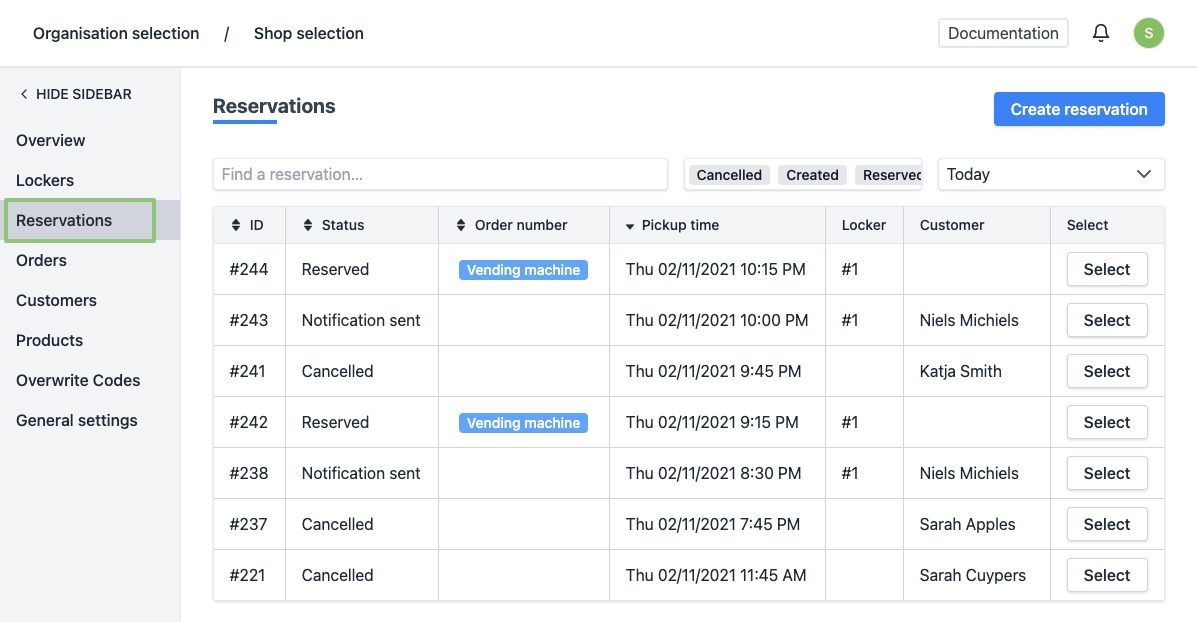
- Click on the row or the button “Select” of the reservation you wish to cancel. Can't find the reservation? Use the search field at the top of the list to easily find the reservation.
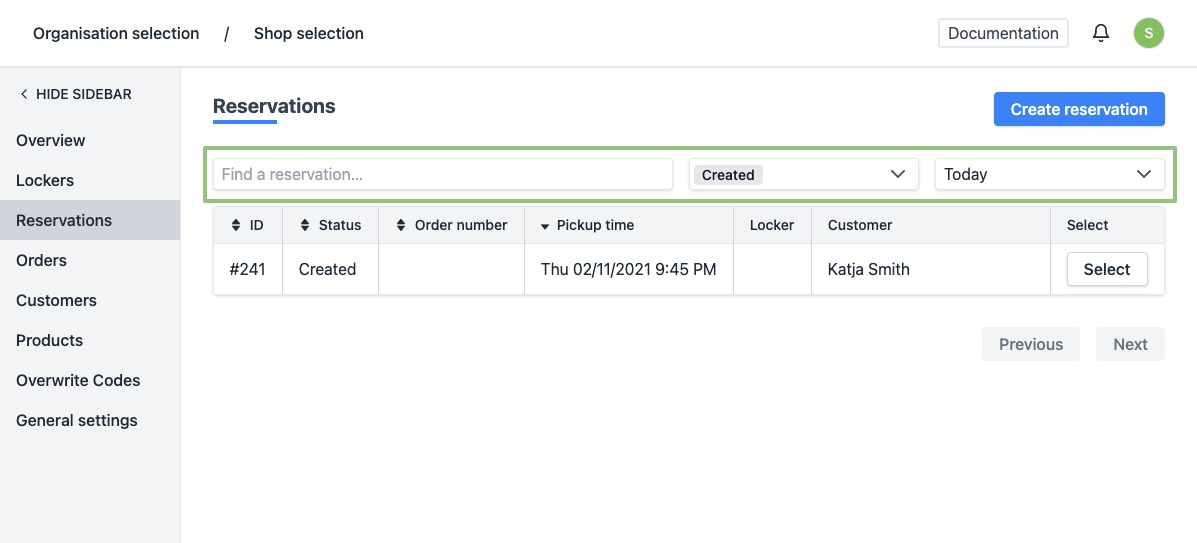
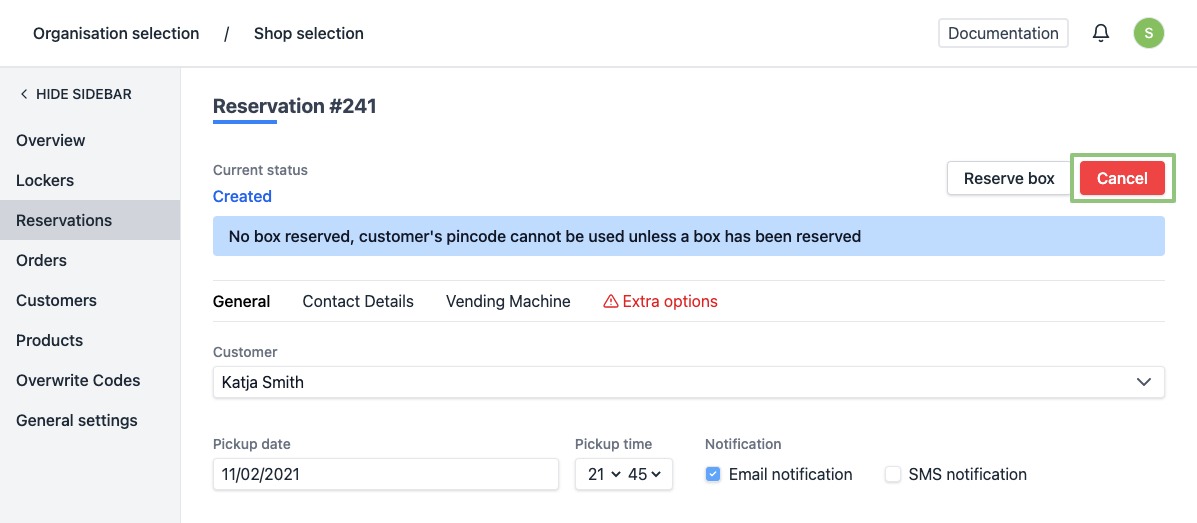
- You will arrive at the reservation's detail page.
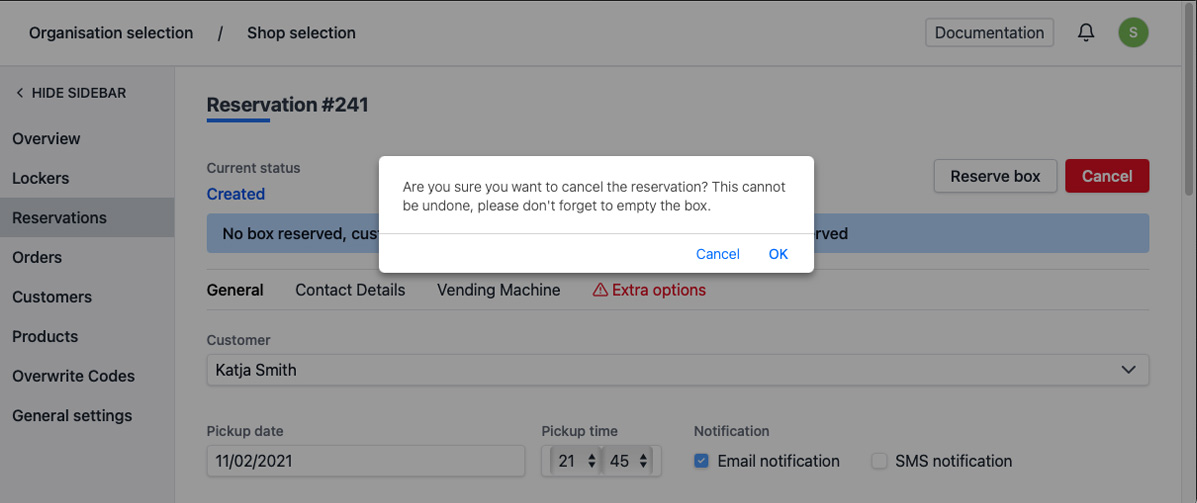
- At the top right, click "Cancel" to cancel a reservation.
Attention! If you cancel a reservation, you must remove it from the locker. If you want to recreate a reservation for this order later on, click on "Remove reservation from locker". This way you put the reservation back in to the queue. This button is only available for reservations that are already in a locker and for which the code has not yet been sent to the customer.
- A pop-up will appear to confirm your action. If you are sure you want to cancel the reservation, click on “OK”.
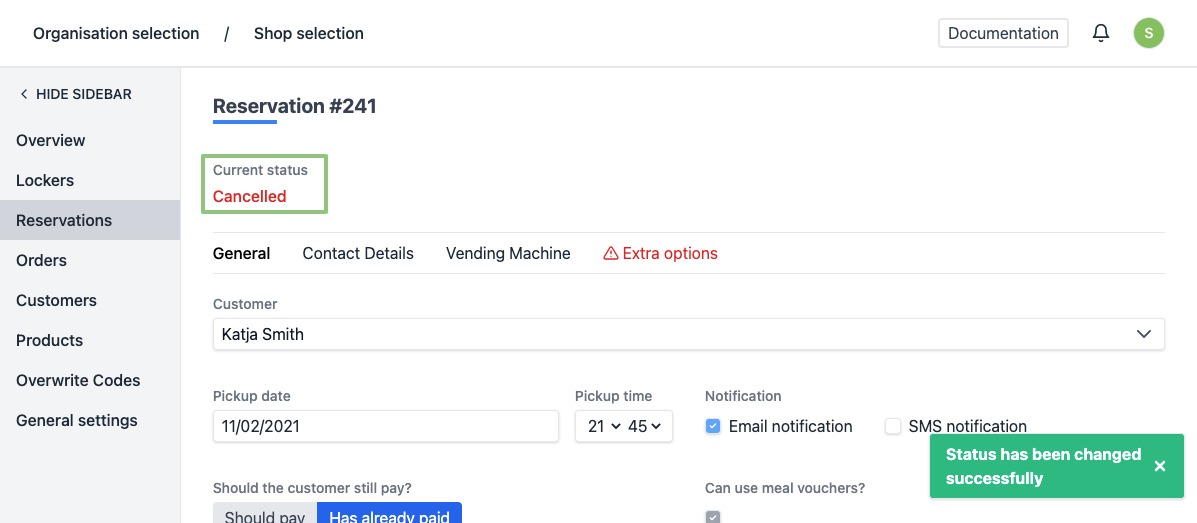
- When canceled successfully, the status on the page is updated automatically. You will see a notification at the bottom right saying the status has been modified successfully.