How do I modify a reservation?
Show Menu
- Quick Start
- Overview
- Lockers
- Reservations
- Orders
- Customers
- Products
- Overwrite codes
- Virtual Vending Machine
- Settings
- User Settings
- Log in to https://app.viresmo.com. Select your organisation and your store.
A reservation can be modified at "Overview", "Reservations" or at "Lockers". For more information about the other pages, see:
- Lockers - How do I modify a reservation?
- Reservations - How do I modify a reservation?
- In the menu on the left, go to "Overview".
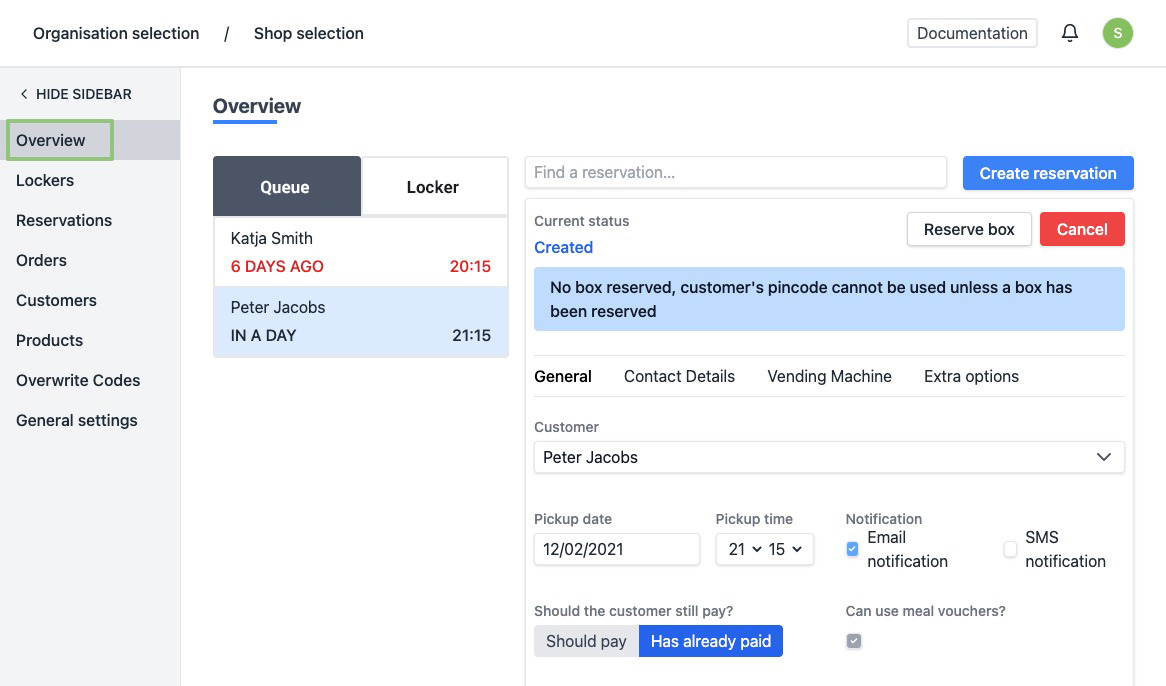
- You will see an overview of all reservations in the queue. You can modify a reservation in the "In Wachtrij" list as well as in the "In Locker" list. Click on the reservation you wish to modify.
- The details of the reservation are shown on the right.
You can change all details of the reservation here.
- Customer - You can search for an existing customer by typing his name or create you can create a new customer. See step 7 for more information about the fields when creating a new customer.
- Collection details: Pickup date and Pickup time
- Notification - Will the code be sent to the customer via email, SMS or both?
- Does the customer still have to pay?
- Has already paid
- Should pay - To use this, you need to create an account with our payment partner Mollie and link it to the platform. For more information on how to link this, see How do I activate my payment account?. If this option is checked and you want to place the order in a box, you will be asked to enter the amount to be paid. The customer will receive an email with a payment invitation at x-hour before the requested collection time. When the customer has paid, he will automatically receive his code.
- Can use meal vouchers? - Only available if the order still has to be paid.
- Extra information
At the top of the form you can go to the tab "Extra options". Here you can enter some extra information:
- Do not automatically generate a pin code - Check this if you want to define a pin code yourself.
- PIN Code - Enter this if you want to define a PIN code yourself. The PIN code must consist of 4 digits.
- Reserve box(s) - Check this if you do not want to automatically delete the reservation after collection, this way you can, for example, put a key in a box for your cleaning staff.
- Send notification automatically - Uncheck this if you do not want the code to be sent automatically to the customer.
Attention, do not change important data if a notification has already been sent to the customer. If you do change data after the notification has been sent, you will be asked whether you are sure you want to change it.
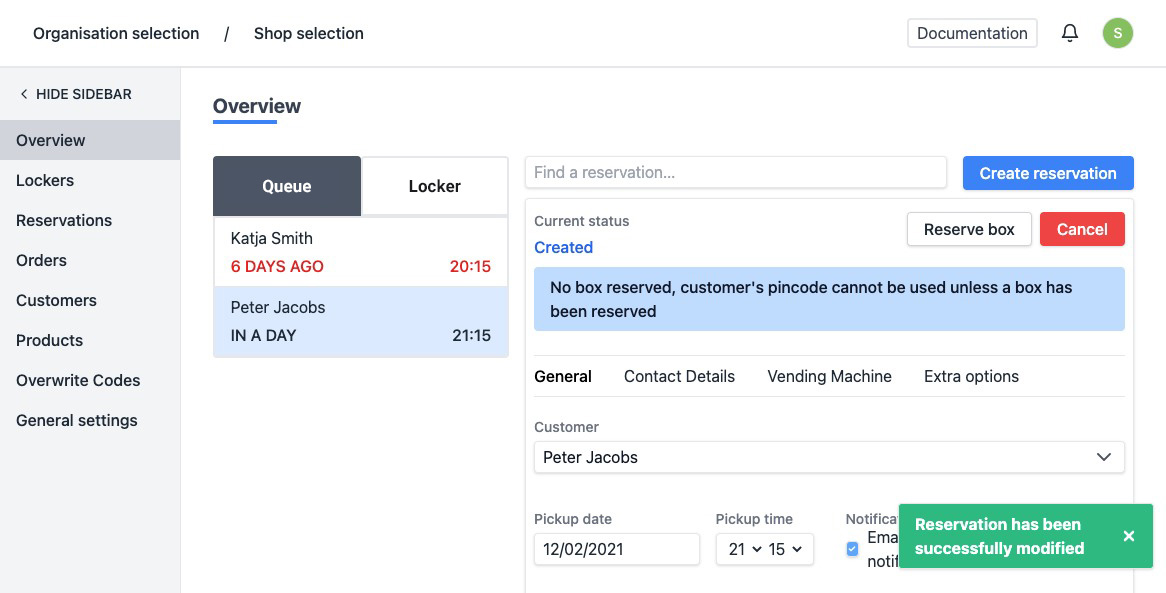
- When modified successfully, the page will be refreshed automatically. You will see a notification at the bottom right saying the reservation has been modified successfully.