- Quick Start
- Overview
- Lockers
- Reservations
- Orders
- Customers
- Products
- Overwrite codes
- Virtual Vending Machine
- Settings
- User Settings
To place a reservation in a box, you must first create a reservation. For more information on how to create a reservation, see How do I create a reservation? of How do I create a reservation for the Virtual Vending Machine?
- Log in to https://app.viresmo.com. Select your organisation and your store.
A reservation can be placed in a box at "Overview", "Reservations" or at "Lockers". For more information about the other pages, see:
- Overview - How do I place a reservation in a box?
- Lockers - How do I place a reservation in a box?
- In the menu on the left, go to "Reservations".
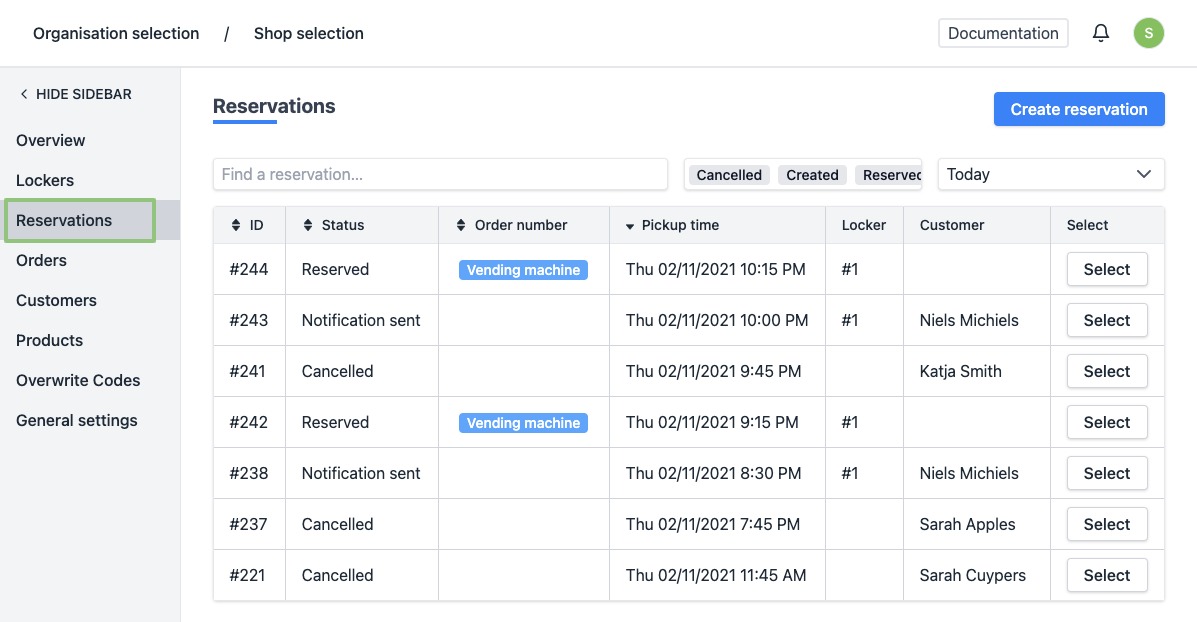
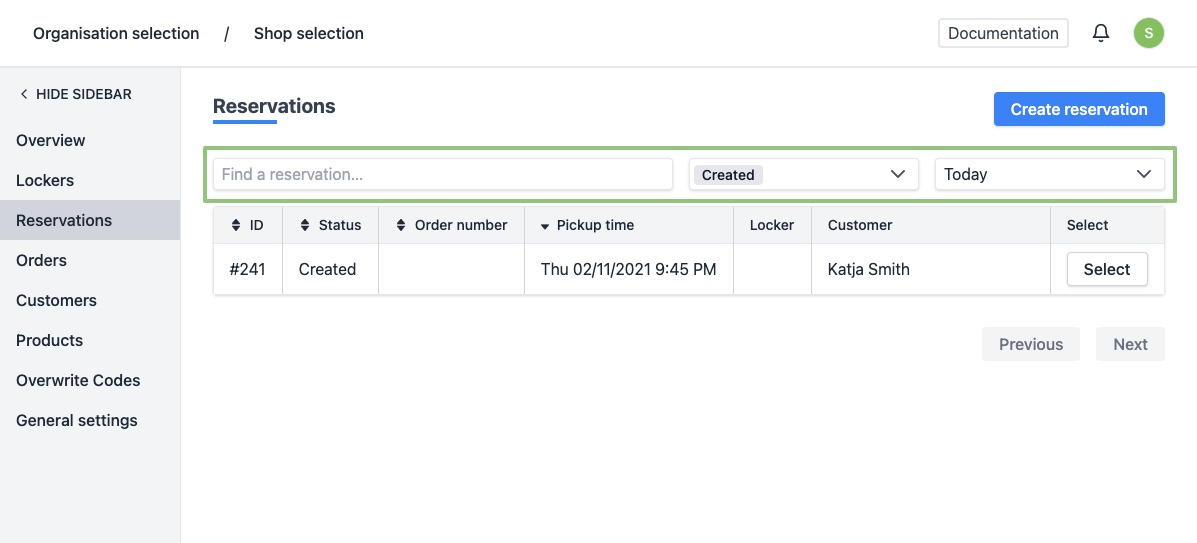
- Click on the row or the button “Select” of the reservation you wish to place in a locker. Can't find the reservation? Use the search field at the top of the list to easily find the reservation.
-
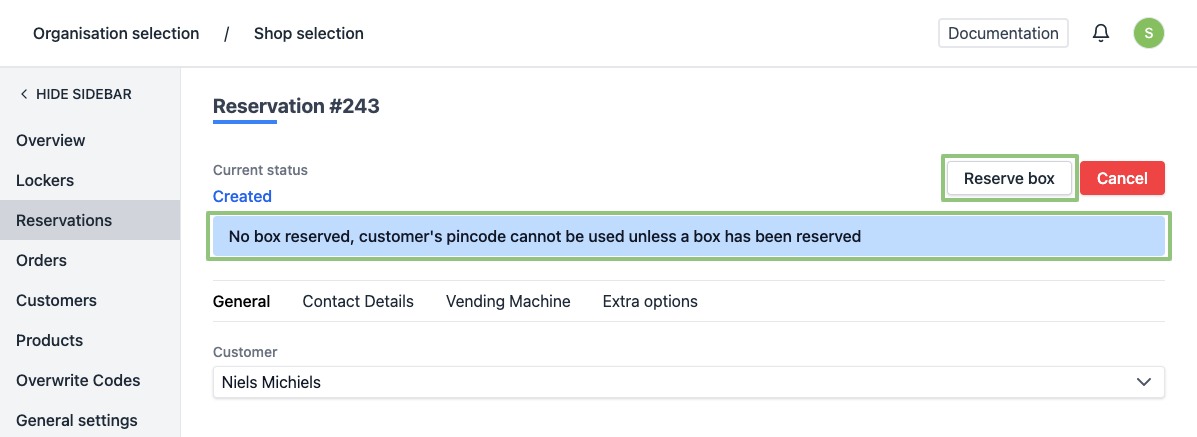
You will arrive at the reservation's detail page.
-
At the top of a reservation you can see whether it has already been assigned to a box. Click, at the top right, on "Reserve box".
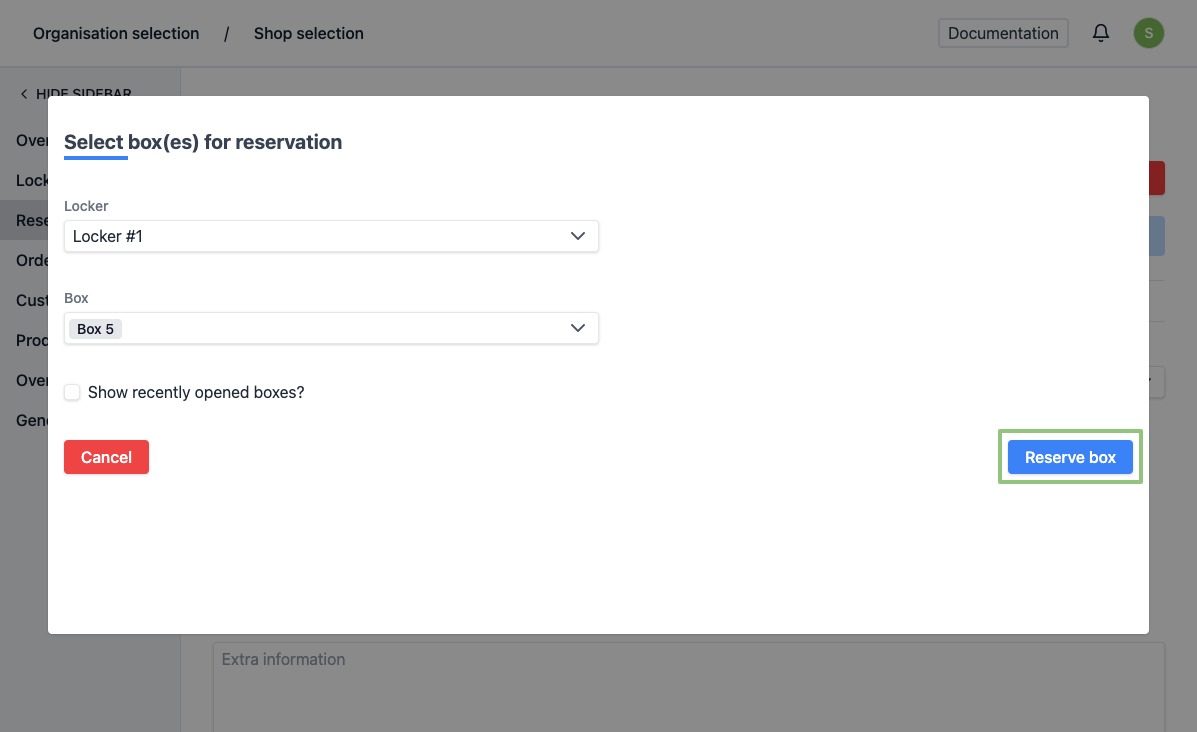
- A popup will appear with a form to choose your box. The next available box is suggested by default. You can also select multiple boxes.
If you choose multiple boxes, the customer will only receive 1 code to open the different boxes. When entering the code, the different boxes open simultaneously.
You can switch between lockers via the dropdown menu.
Click on "Reserve box" to assign a box.
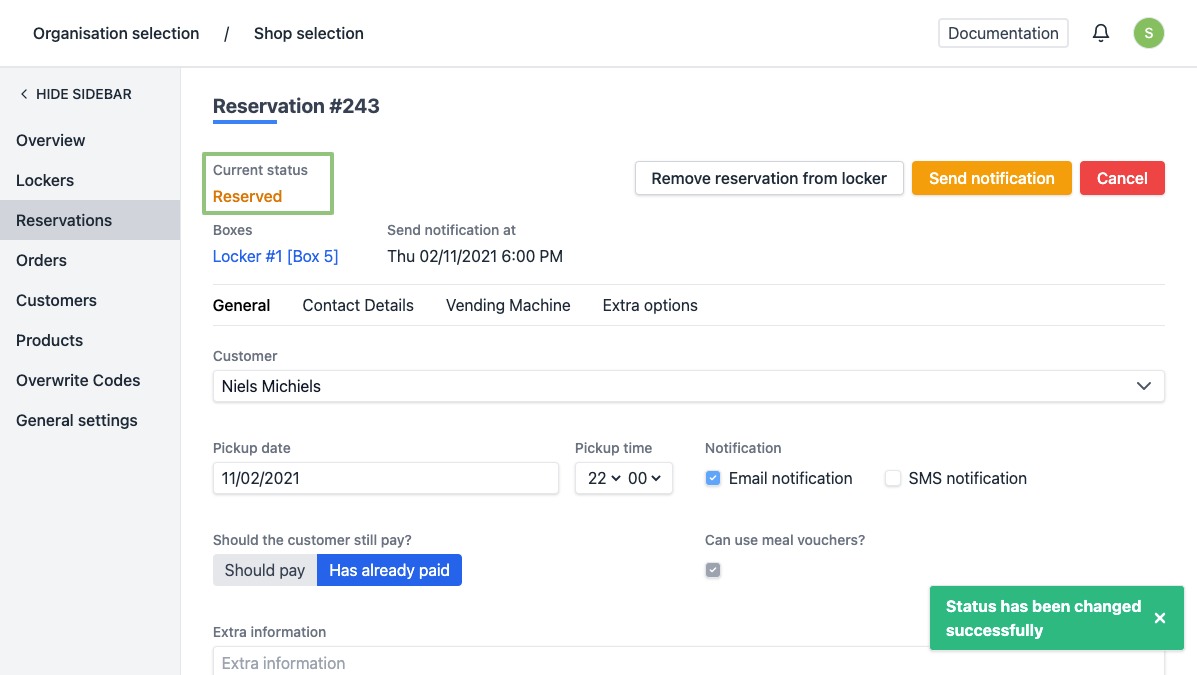
- When assigned successfully, the page is automatically reloaded and the status of the reservation will have been updated. At the bottom right you will see a message saying the status has been updated successfully.
The customer will automatically receive his code x hours before the pick up hour. You can determine this time interval yourself in the settings.