How do I create a product?
Show Menu
- Quick Start
- Overview
- Lockers
- Reservations
- Orders
- Customers
- Products
- Overwrite codes
- Virtual Vending Machine
- Settings
- User Settings
- Log in to https://app.viresmo.com. Select your organisation and your store.
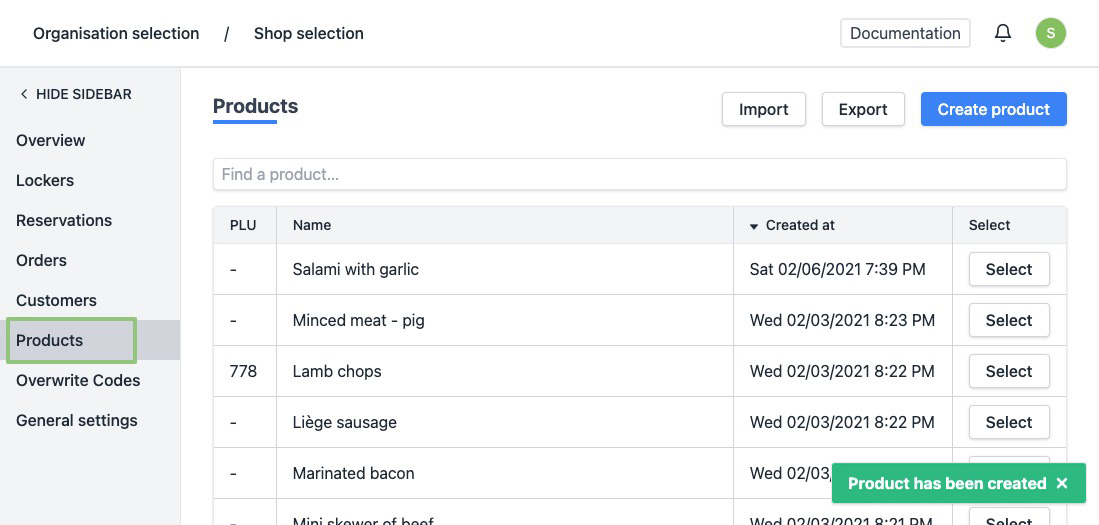
- In the menu on the left, go to "Products".
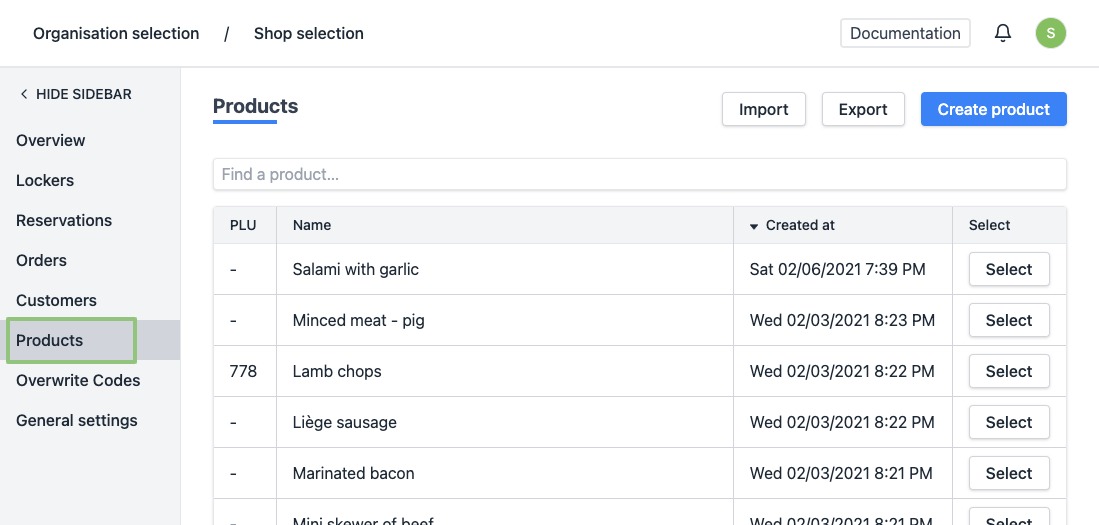
- You will see a list of all your products. At the top right, click "Create product".
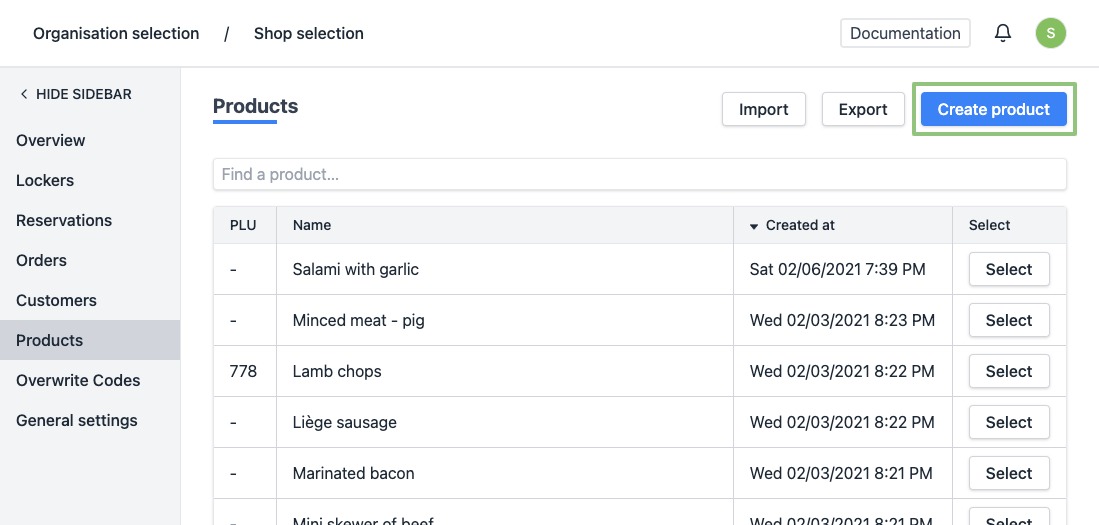
- You will see a form.
Enter the details of the product:
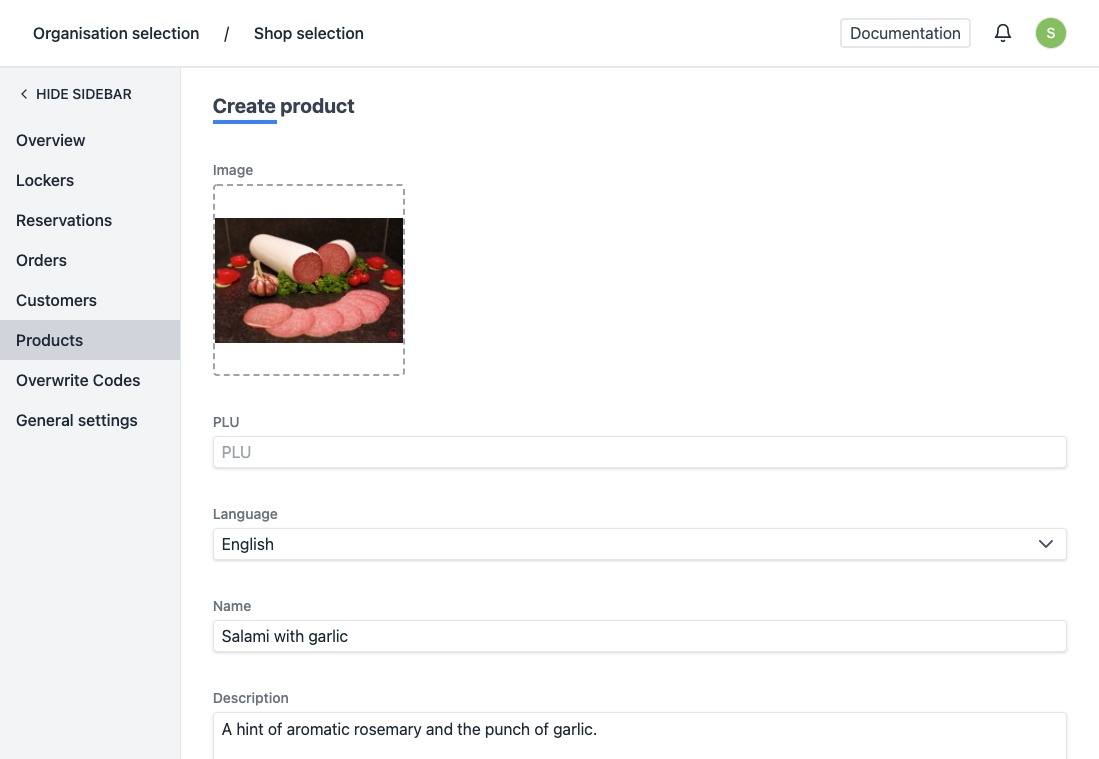
General details:
- Image - To add an image to a product, click on the image area below the image label or drag an image into it. Attention this upload functionality is limited to a file size of 50 megabytes.
- PLU - You can optionally enter the "Price Look-up Code" to link this in your POS system.
- Translations: Language, Name and Description - To add a translation, select the desired language from the dropdown menu and fill in the fields Name and Description for each language.
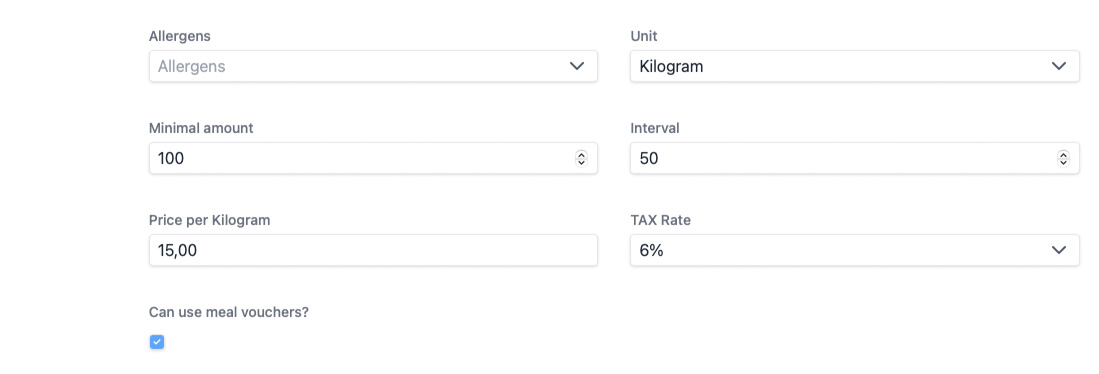
- Allergens - Select all allergens that apply to this product from the dropdown menu.
- Price determination: Unit, Minimum amount, Interval, Price per unity and VAT Rate.
For example: I want to sell salami with garlic, it can be sold for 15.00 EUR per kilogram, with a minimum purchase of 100 gr. My quantities are always rounded off to 50gr.
- Unit: kilogram
- Minimum amount: 100
- Interval: 50
- Price per kilogram: 15.00
Meal vouchers
- Can use meal vouchers? - Check if this product can be paid with meal vouchers.
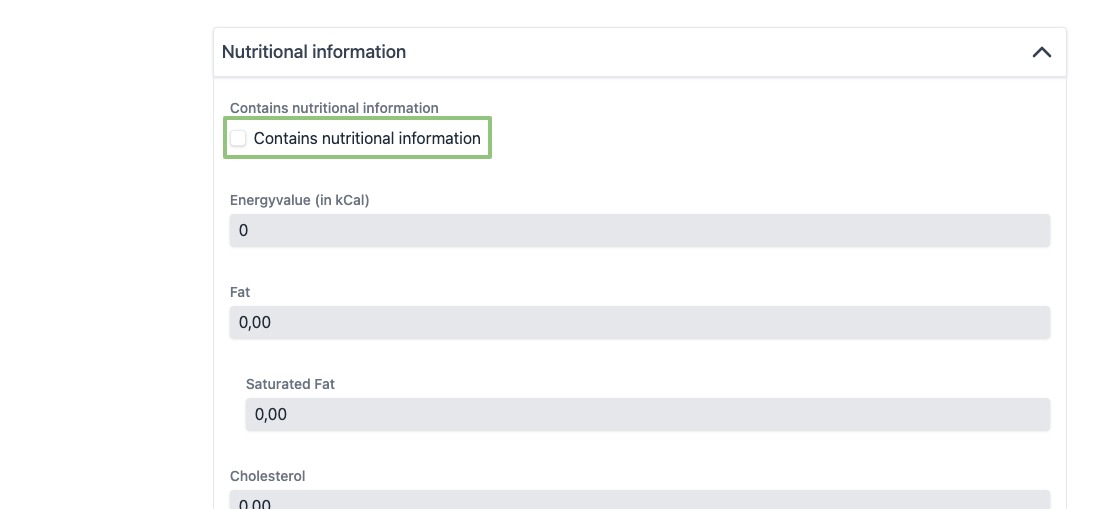
Nutritional values:
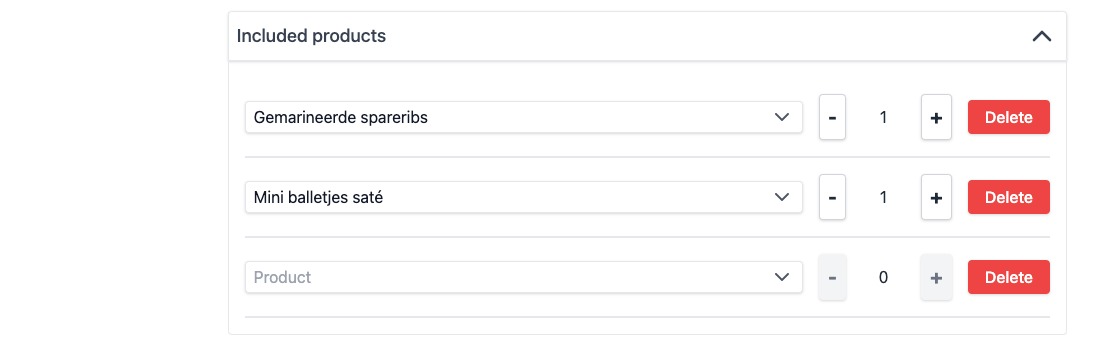
Included Products:
- If the product you are modifying is a package, you can manage its content here.
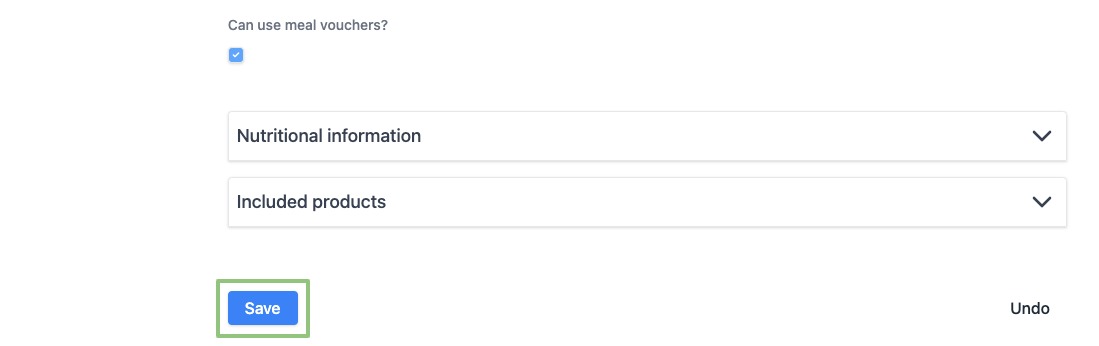
- Click on “Save” .
- When created successfully, you will be redirected to the overview of the products and you will see a notification at the bottom right saying the product has been created successfully.