How do I modify a product?
Show Menu
- Quick Start
- Overview
- Lockers
- Reservations
- Orders
- Customers
- Products
- Overwrite codes
- Virtual Vending Machine
- Settings
- User Settings
- Log in to https://app.viresmo.com. Select your organisation and your store.
- In the menu on the left, go to "Products".
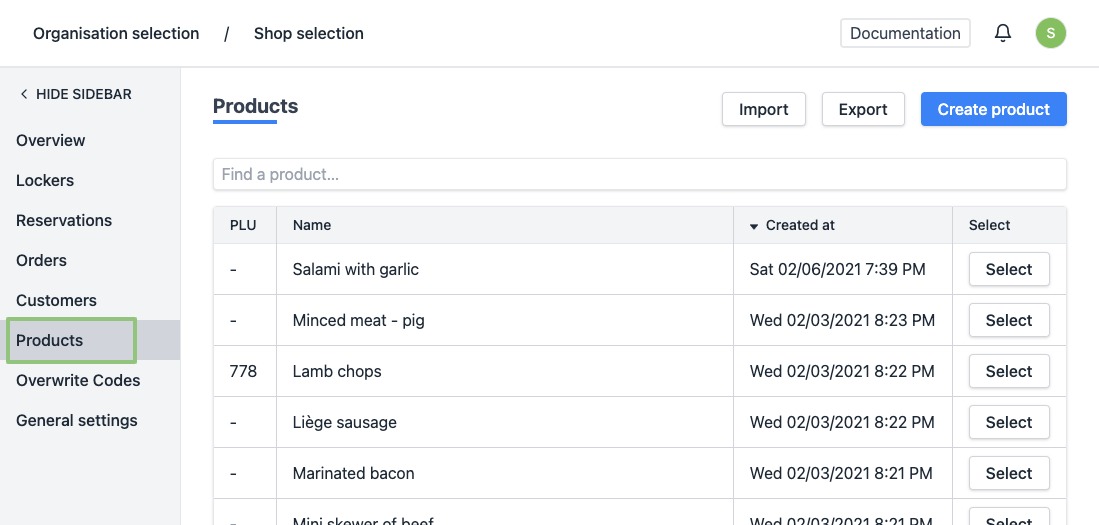
- You will see a list of all your products.
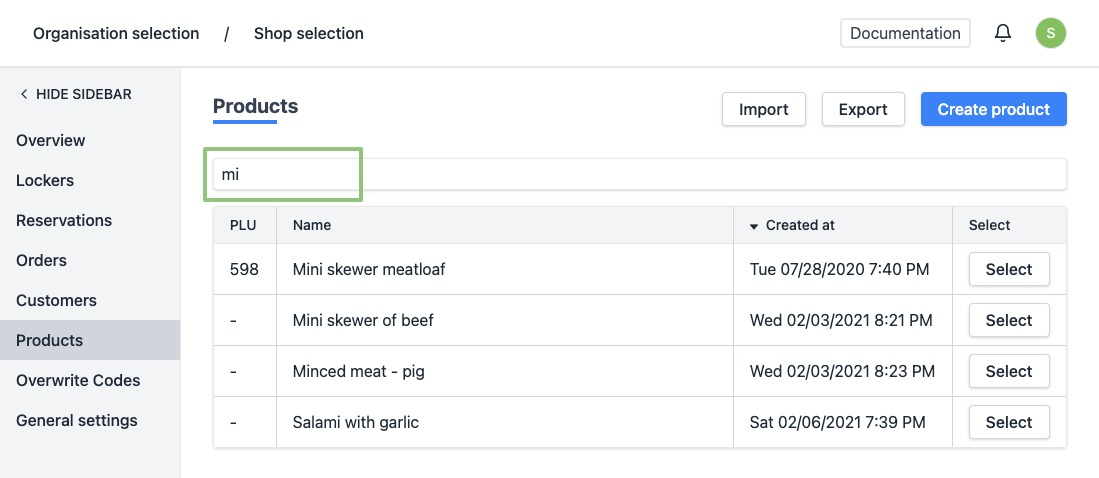
- Click on the row or the button “Select” for the product you wish to modify. Can't find the product? Use the search field at the top of the list to easily find the product.
- You will arrive at the product's detail page.
You can modify all product data here:
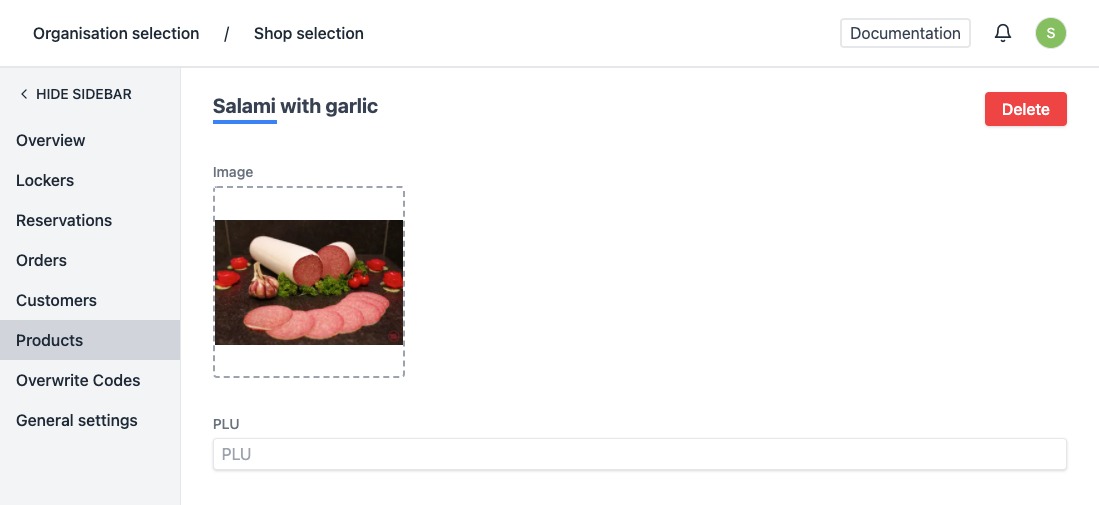
General details:
- Image - To add an image to a product, click on the image area below the image label or drag an image into it. Attention this upload functionality is limited to a file size of 50 megabytes.
- PLU - You can optionally enter the "Price Look-up Code" to link this in your POS system.
- Translations: Language, Name and Description - To add a translation, select the desired language from the dropdown menu and fill in the fields Name and Description for each language.
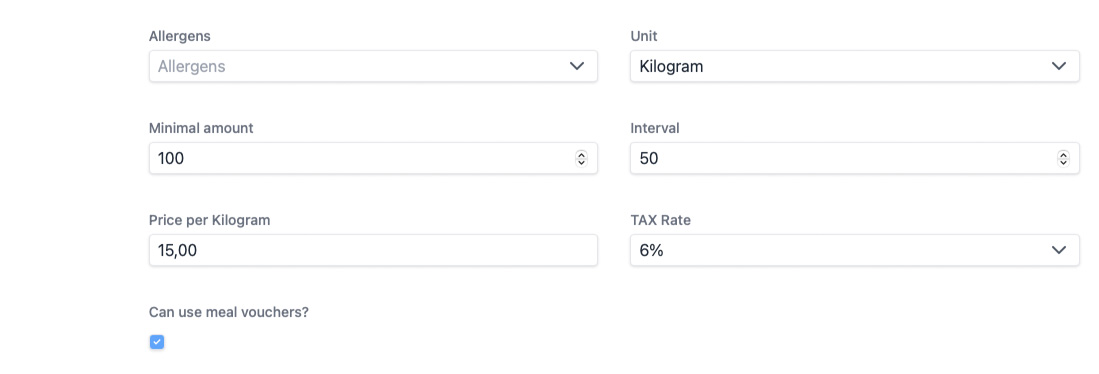
- Allergens - Select all allergens that apply to this product from the dropdown menu.
- Price determination: Unit, Minimum amount, Interval, Price per unity and VAT Rate.
For example: I want to sell salami with garlic, it can be sold for 15.00 EUR per kilogram, with a minimum purchase of 100 gr. My quantities are always rounded off to 50gr.
- Unit: kilogram
- Minimum amount: 100
- Interval: 50
- Price per kilogram: 15.00
Meal vouchers
- Can use meal vouchers? - Check if this product can be paid with meal vouchers.
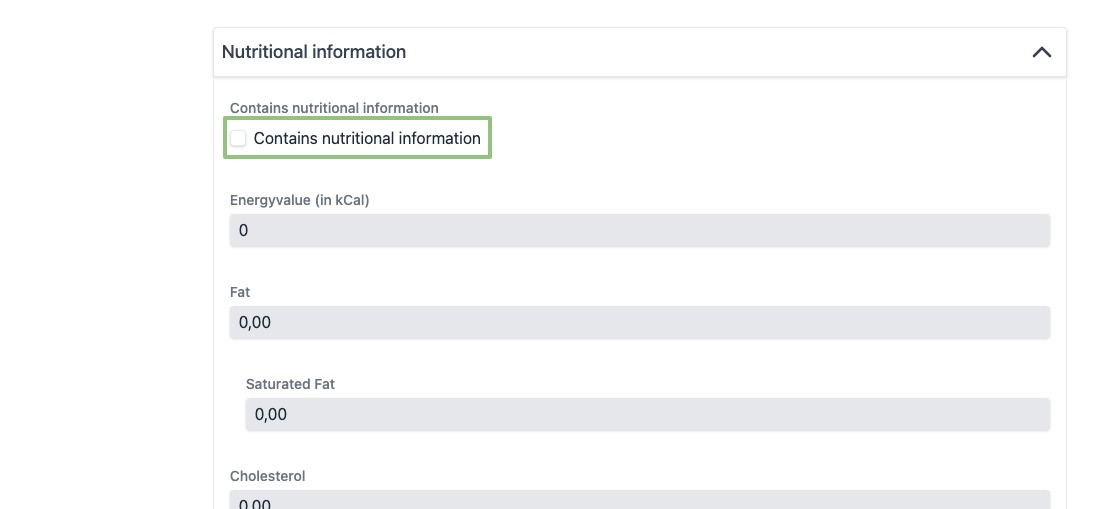
Nutritional values:
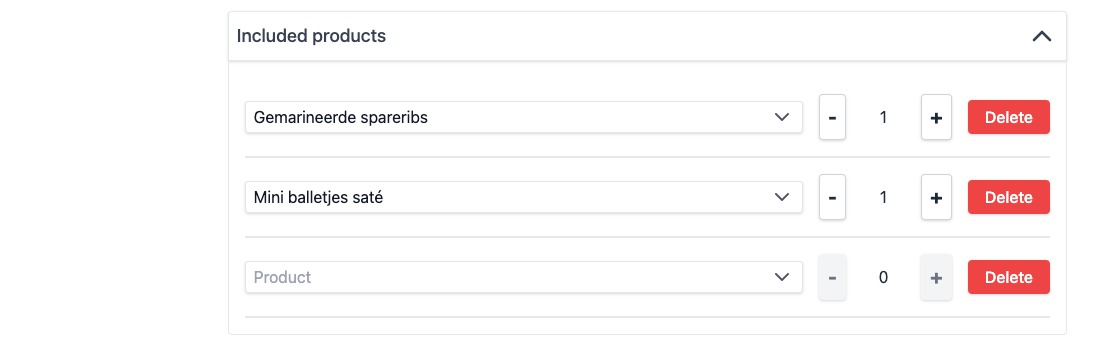
Included Products:
- If the product you are modifying is a package, you can manage its content here.
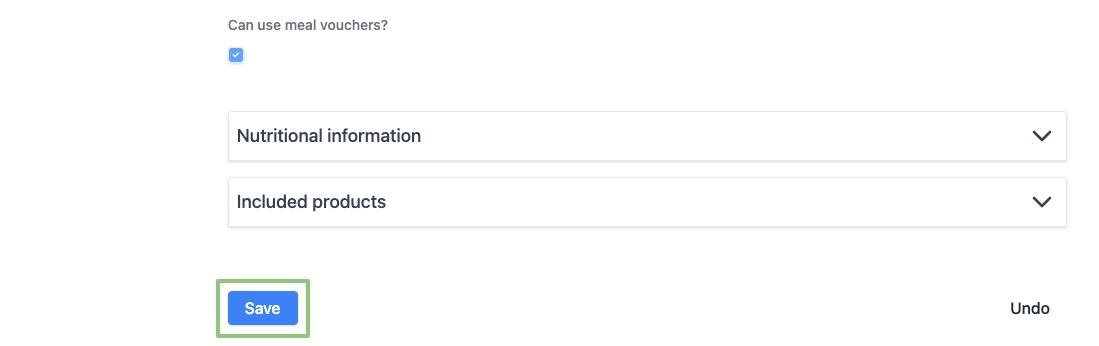
- Click on “Save” to save your changes.
- When modified successfully, you will see a notification at the bottom right.