How do I change my password?
Show Menu
- Quick Start
- Overview
- Lockers
- Reservations
- Orders
- Customers
- Products
- Overwrite codes
- Virtual Vending Machine
- Settings
- User Settings
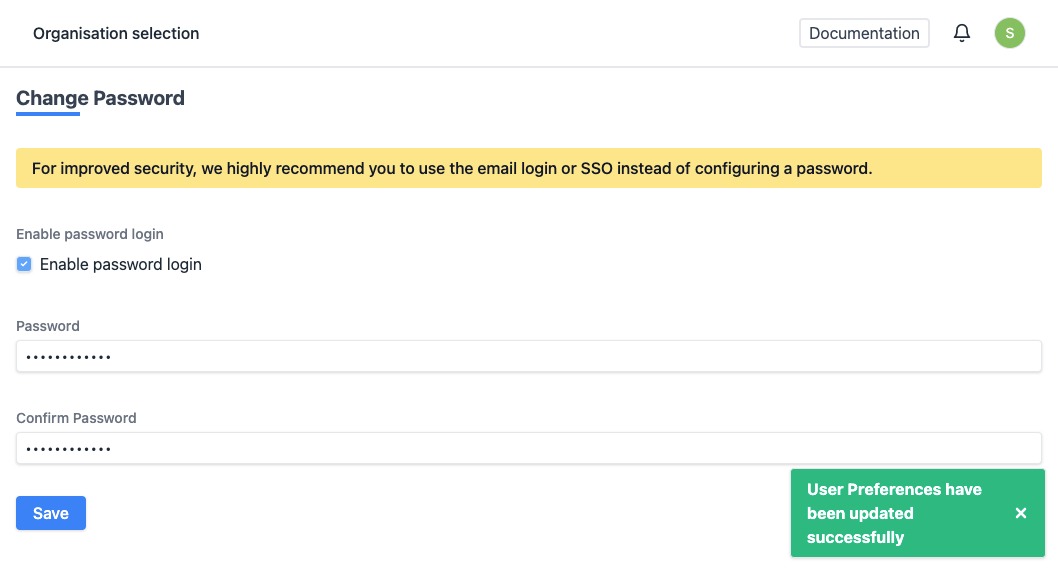
Attention! For improved security, we highly recommend you to use the email login or SSO instead of configuring a password. When using the single sign on login method, a code will be sent to your e-mail address every time you wish to log in. You then enter the code in the site as your final login step.
If you however wish to use a password to login, follow the steps below.
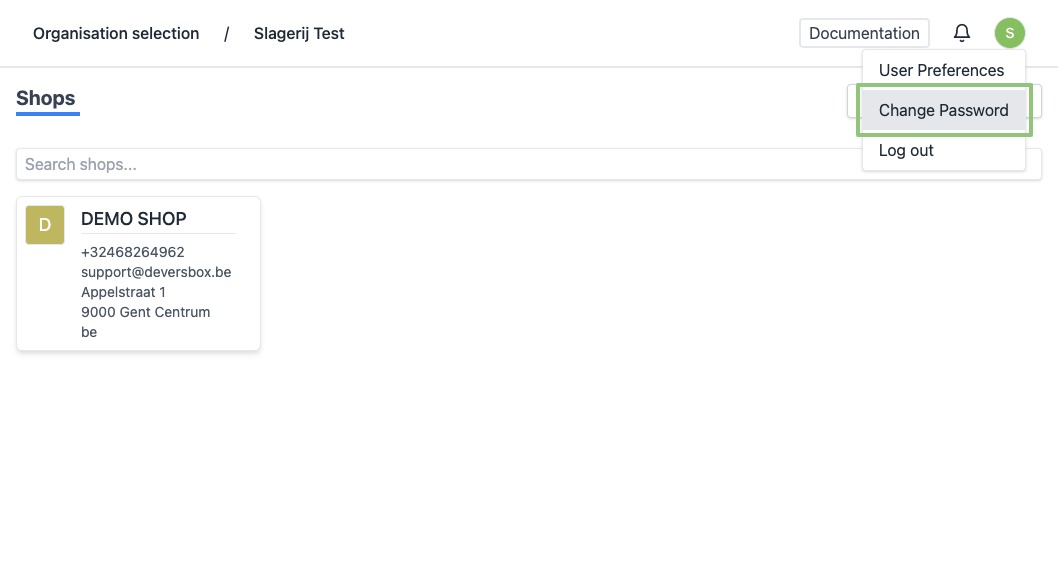
- In the top right corner, click the round icon with the initial of your firstname. A dropdown menu appears. Click “Change Password”.
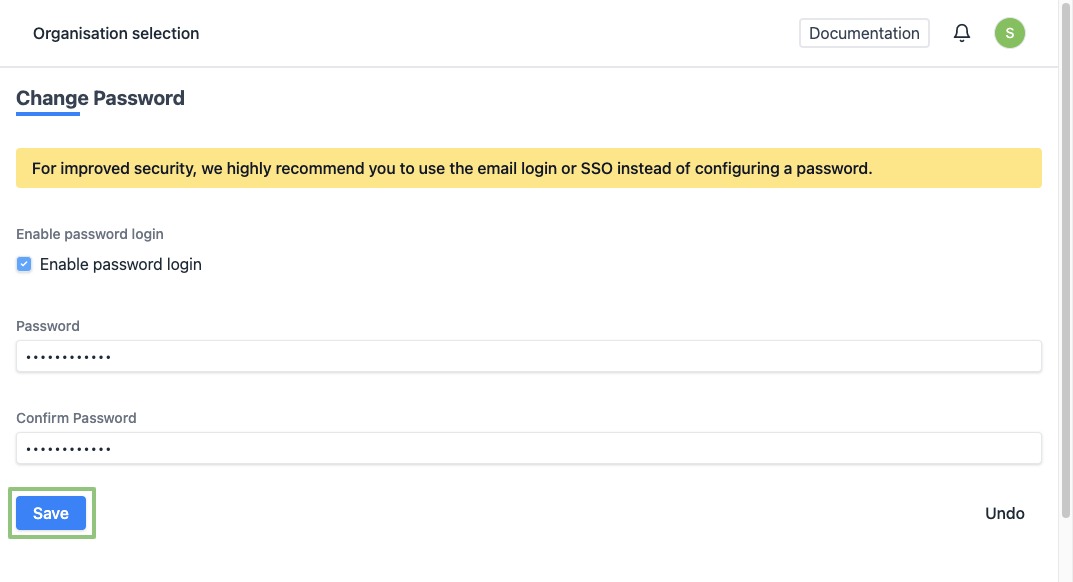
- You will see a form.
Enter all details:
- Enable password login - This should be checked if you prefer to use a password to log in.
- Password - Enter your (new) password.
- Confirm Password - Repeat your (new) password.
At the bottom, click on “Save” to save your changes.
- When modified successfully, you will see a notification at the bottom right.