- Quick Start
- Overview
- Lockers
- Reservations
- Orders
- Customers
- Products
- Overwrite codes
- Virtual Vending Machine
- Settings
- User Settings
To place a reservation in a box, you must first create a reservation. For more information on how to create a reservation, see How do I create a reservation? of How do I create a reservation for the Virtual Vending Machine?
- Log in to https://app.viresmo.com. Select your organisation and your store.
A reservation can be placed in a box at "Overview", "Reservations" or at "Lockers". For more information about the other pages, see:
- Overview - How do I place a reservation in a box?
- Reservations - How do I place a reservation in a box?
- In the menu on the left, go to "Lockers".
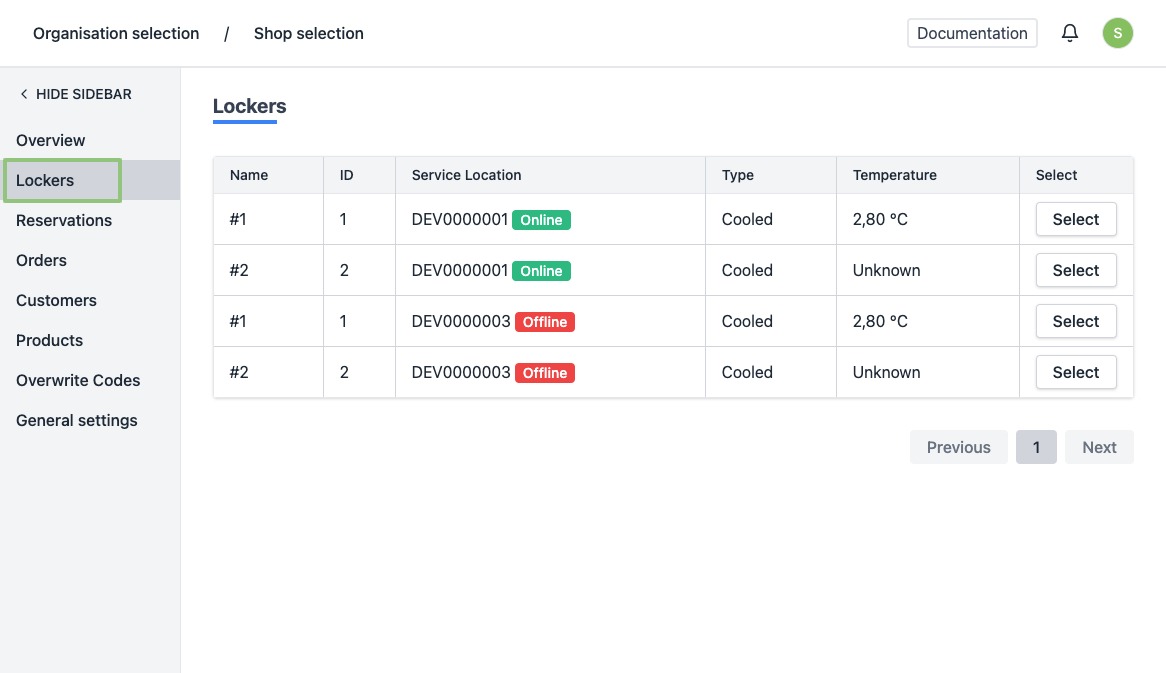
- You will see a list of all your current lockers.
- Click on the row or the button “Select” of a locker.
- You will be directed to the locker's detail page.
At the top you will see an overview with the current locker content.
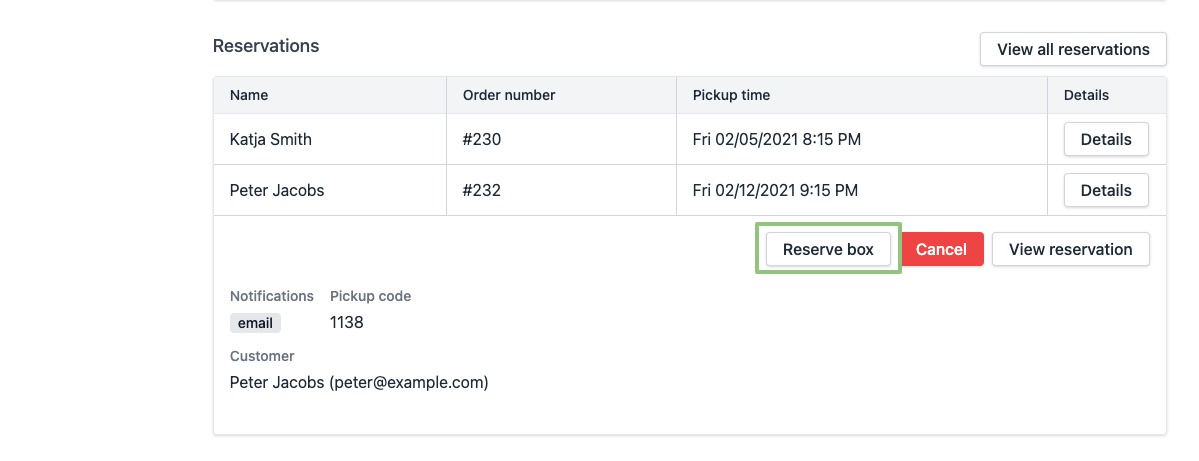
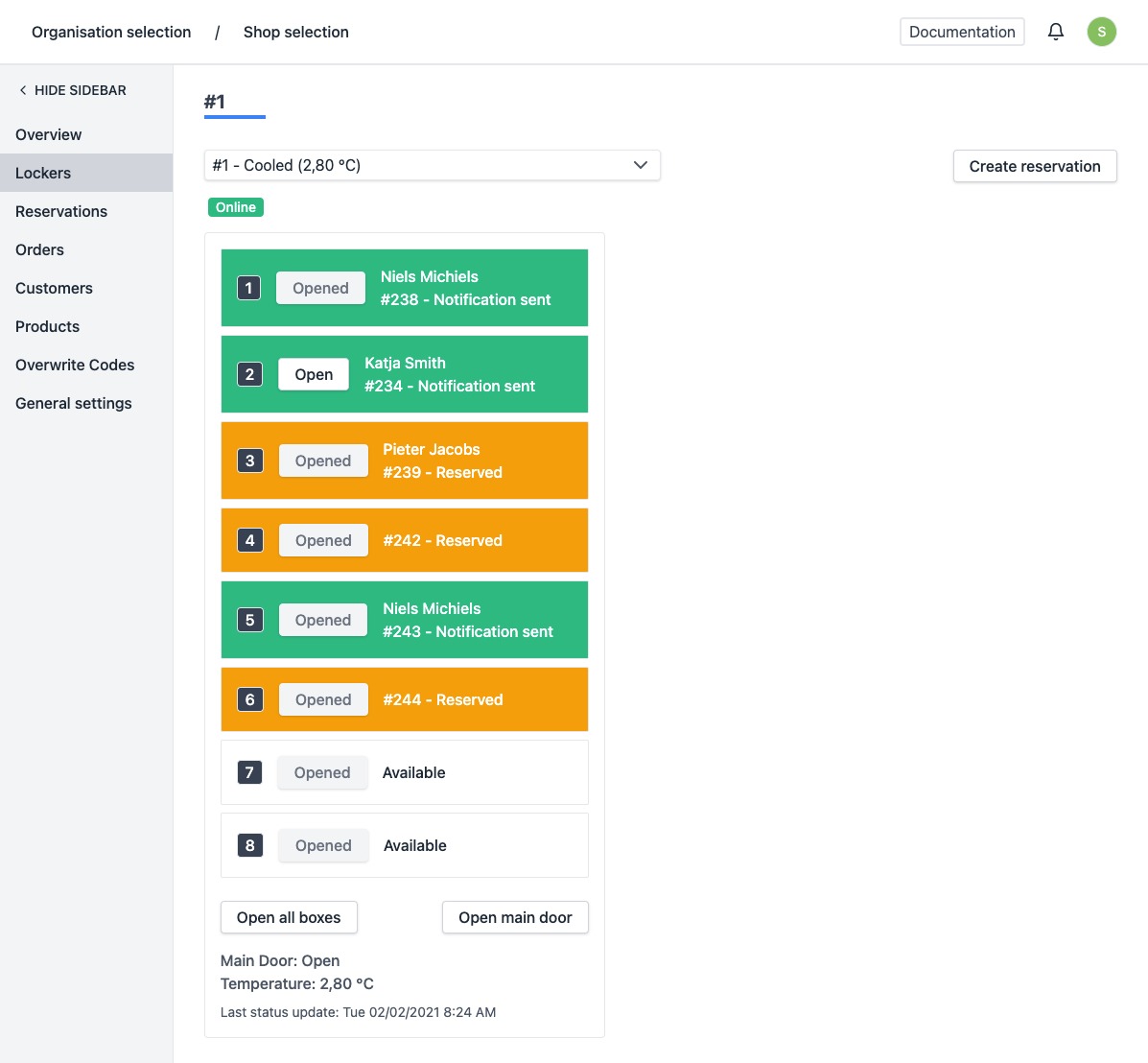 When you scroll down in this overview, you will arrive at an overview of reservations. Click on the reservation you wish to place in a box. In the detail of the reservation, click on "Reserve box".
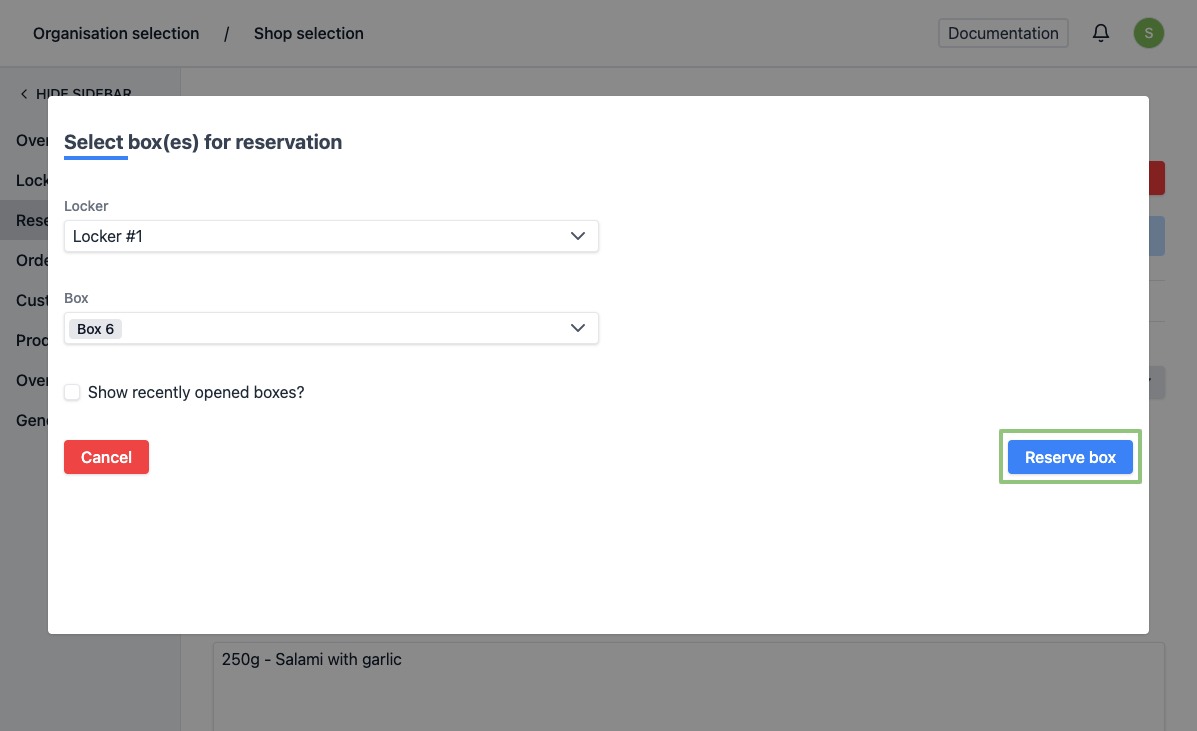
- A popup will appear with a form to choose your box. The next available box is suggested by default. You can also select multiple boxes.
If you choose multiple boxes, the customer will only receive 1 code to open the different boxes. When entering the code, the different boxes open simultaneously.
You can switch between lockers via the dropdown menu.
Click on "Reserve box" to assign a box.
- When assigned successfully, the page is automatically reloaded and the reservation will have been removed from the reservations list. The reservation can now be found in the list "In Locker".
The customer will automatically receive his code x hours before the pick up hour. You can determine this time interval yourself in the settings.